Filters
Filters permit users to retrieve data based on a set of parameters that include:
Years
Bureaus
Countries
Sites
- NOTE:
The degree of filtering by Bureaus, Countries and Sites depends on the user’s access level.
A user with Global Level Access can filter by multiple Bureaus, Countries and Sites.
A user with Bureau Level Access can filter by multiple Countries and Sites that are within the Bureau associated with their user account.
A user with Country Level Access can filter by the multiple Sites within the Country associated with their user account.
A user with Site Level Access can filter by the Sites associated their user account.
Opening the Filter Window
To open the filter window, click the red filter icon on the bottom right of the page.

An illustration of the Filter icon
Clicking the Filter icon will effectively render two additional sub-filter icons vertically above the filter icon as depicted below. The Filter icon then turns into an X icon which when clicked, closes the vertical sub-filter icons.
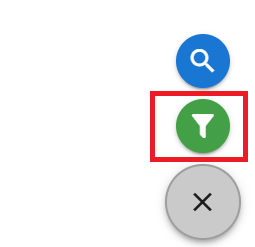
An illustration of the sub-filter icons
The green funnel icon highlighted with a red square in the illustration above, renders the Filter Window when clicked. The Filter Window will originate from the bottom of the screen.
Selecting Candidate Filters
Once the Filter Window renders, it provides 4 dropdown fields for the 4 filter parameters - Years, Bureaus, Countries and Sites. Clicking any of the 4 dropdown fields reveals a list of possible values by which filtering can be done by that filter parameter.
As the users selects filter values based on the various parameters, the Apply button in the bottom right of the Filter Window indicates the number of currently selected filters. Additionally, the filters applied appear within the Filter Window just below the filter selection dropdown fields.
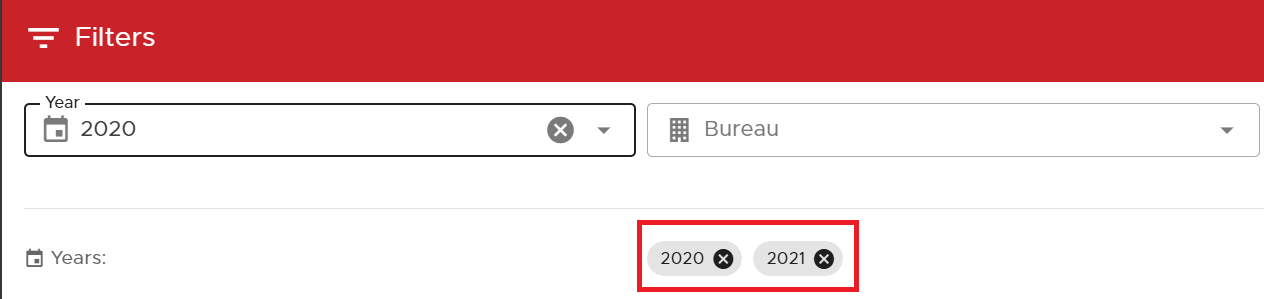
An illustration of part of the Filter Window with active filters (Years)

An illustration of total active filters on the Apply button
Applying Selected Filters
Once the desired filters have been selected, they can be applied by clicking the Apply button located in the bottom right of the Filter Window. This action will close the Filter Window and the application fetches data based on the specified
- NOTE:
It should be noted that the filters applied will be effected across all pages of the application.
Discarding Filters
To discard filters applied, simply open the Filter Window and click the Reset button located in the bottom left. Finally, click the Apply button in the bottom right.
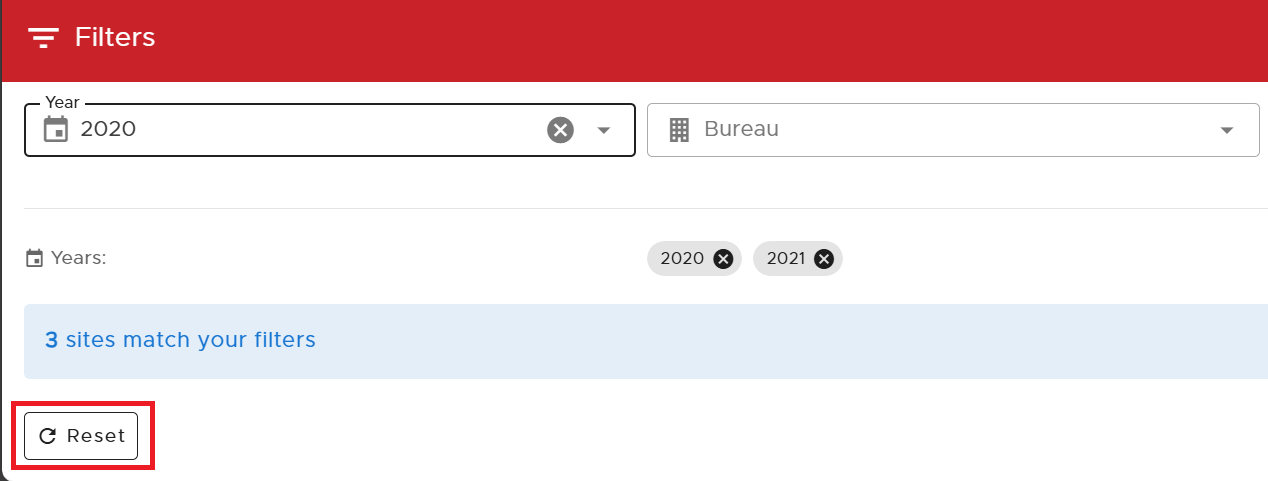
An illustration of the Filter Reset button
Opening the Chart Search Filter
This feature aids in finding charts either by searching the Chart Code or Chart Description. To access, the search feature, please follow the steps described in Opening the Filter Window section.
From the 2 vertical filter sub-icons just above the Filter button, click the blue lens search icon.
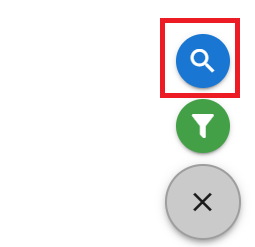
An illustration of the Chart Search button
Clicking the blue lens search icon will render a new window as shown below.
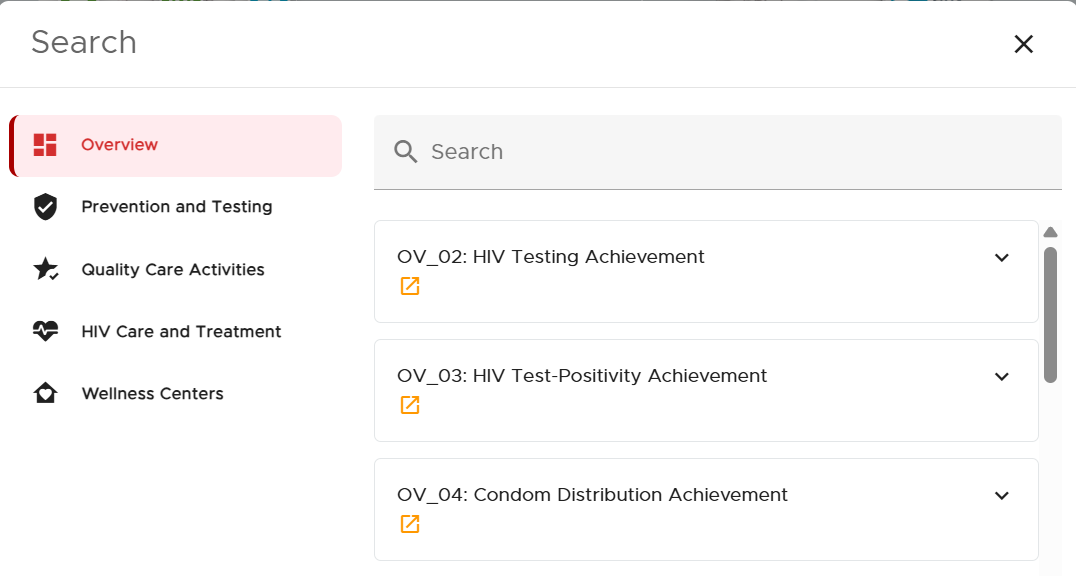
An illustration of the Chart Search window
Notice that the left of Search Window includes the same tabs as those in the Left Navigation Window of the main application.
By default, the navigation tabs within the Search Window are associated with the respective charts contained in them. Clicking a tab within the Search Window will provide a list of all charts contained within that tab. The list bears Chart Titles and Chart Descriptions.
Notice that in the Chart Search Window image illustration immediately above that the Overview page is selected by default and the corresponding list of charts on the right includes charts found on the Overview Page.
Showing/Hiding Chart Descriptions
To obtain the description of a chart included in the list of charts associated with a selected tab or a searched chart, click the V-like icon. This expands the description section and makes it visible. The V-like icon gets inverted and clicking it hides the chart description.
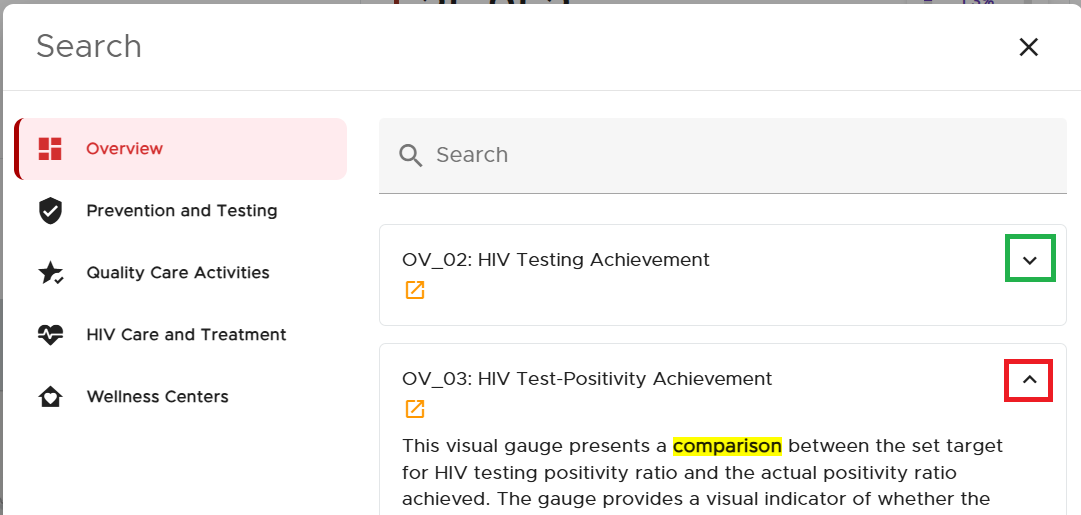
An illustration of showing/hiding chart descriptions
Searching Charts
A chart can be searched either by including keywords that constitute its description or the title of the chart in the Search field.
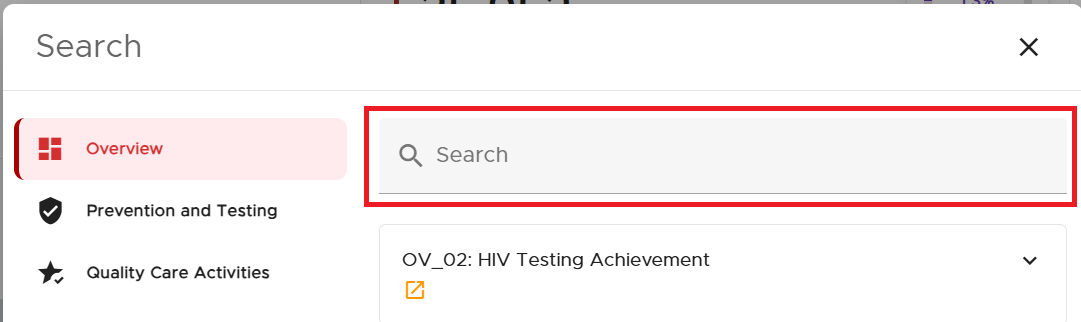
An illustration of the Chart Search field
Visiting Chart’s Page of Origin
The Search Window aids users in finding candidate charts of interest based on keywords in the chart description or title of the chart.
To navigate directly to the exact page where the searched chart is located, click the orange arrow icon. This will direct the user to the exact tab where the candidate chart can be found.
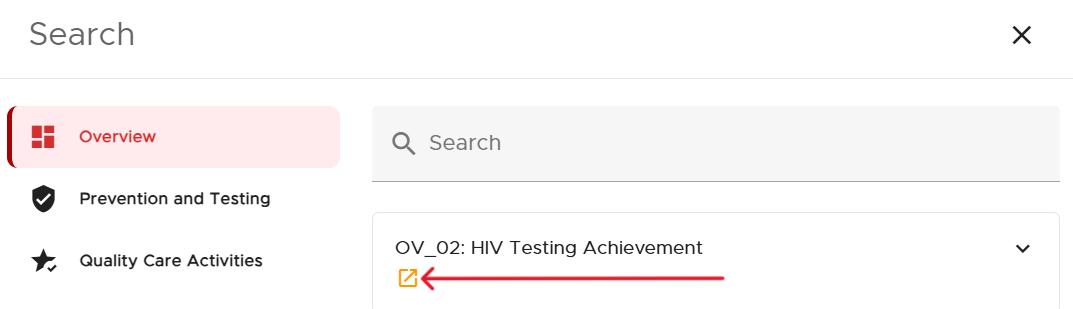
An illustration of navigating to the chart’s page of origin