Supported Languages
The application provides translations for a range of languages to enhance accessibility among users from various regions across the globe. Currently, the following languages are supported:
English (UK)
Spanish
Portuguese (Brazil)
Lao (Laos)
Thai (Thailand)
Indonesian (Indonesia)
Vietnamese (Vietnam)
French (France)
Chinese (Simplified, China)
Portuguese (Mozambique)
Khmer (Cambodia)
Kiswahili (Tanzania)
Russian
Ukranian
Estonian
Hindi (India)
Marathi (India)
Sesotho (Lesotho)
Romanian (Romania)
A user may select their preferred language in two ways, outlined as follows:
From the Login form (bottom).
From the Navigation menu (top right).
Language Selection via the Login Form
Selecting the language of choice via the Login form would only be possible for a user who has not yet logged in (unauthenticated).
There exists an option to change the language just right below the red Login button. Clicking this option renders a list of languages to choose from.
To select a language, simply click it on the rendered list of languages. The list of languages disappears once the preferred language has been selected.
The selected language will be indicated on the same option that triggered the list of languages just right below the red Login button.
The flag of the country associated with the selected language will also be displayed to the right of the selected language.
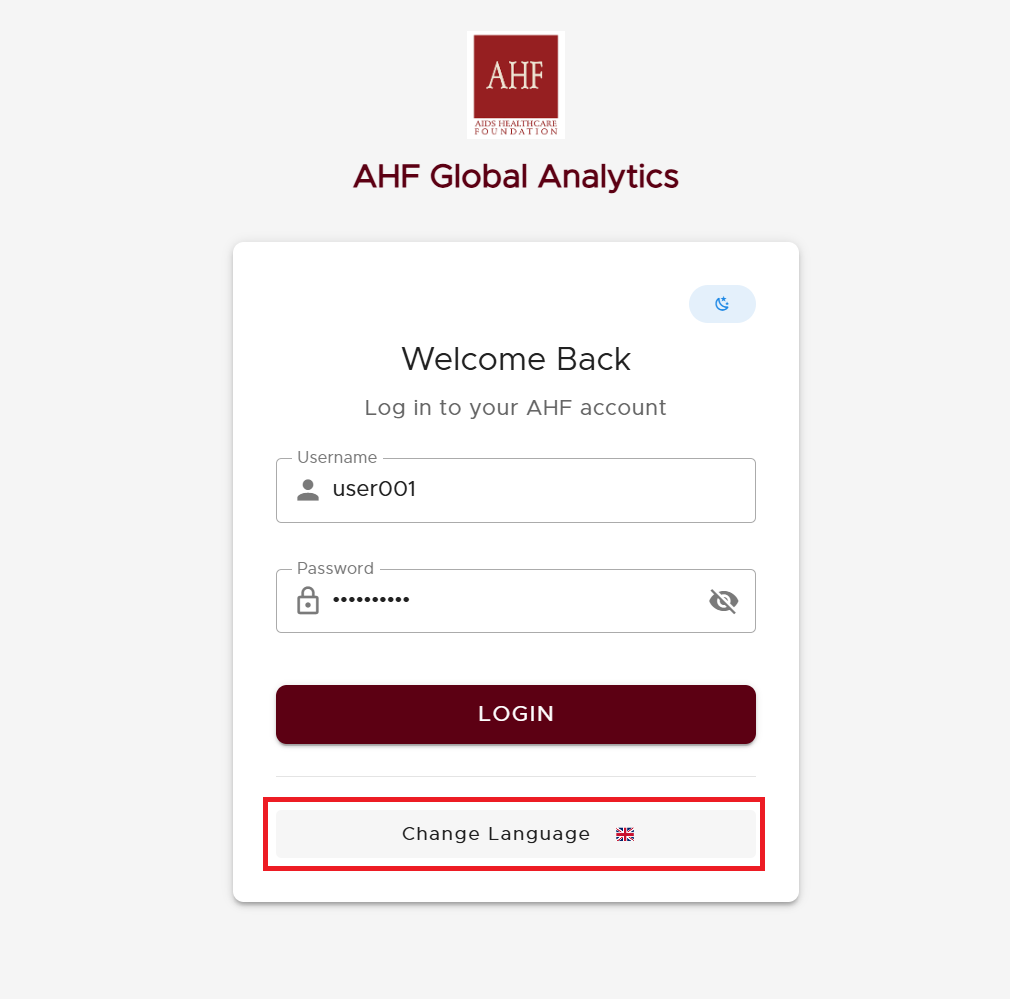
Login Form with Language Selection Option & Associated Country Flag
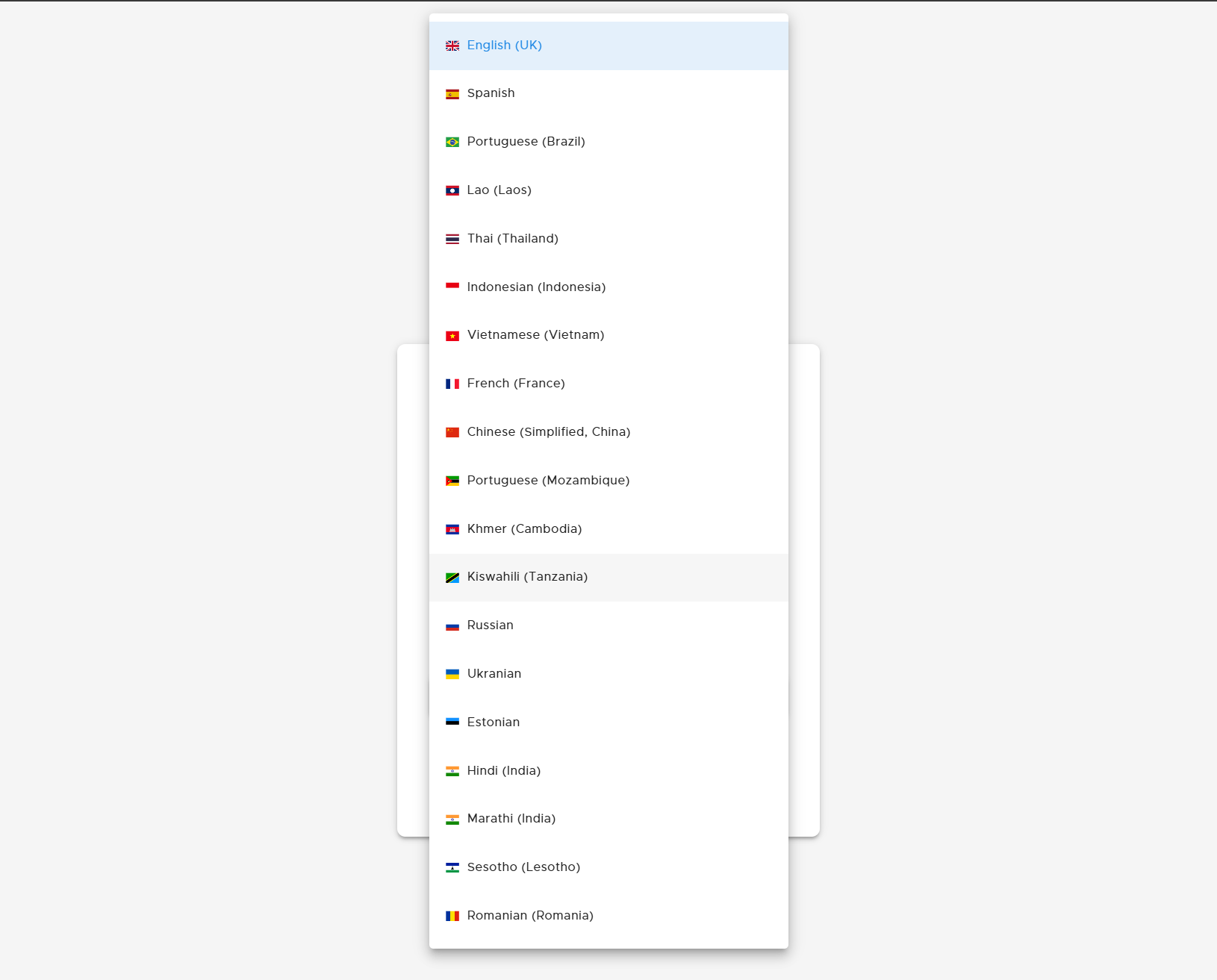
Selecting a Language - Swahili
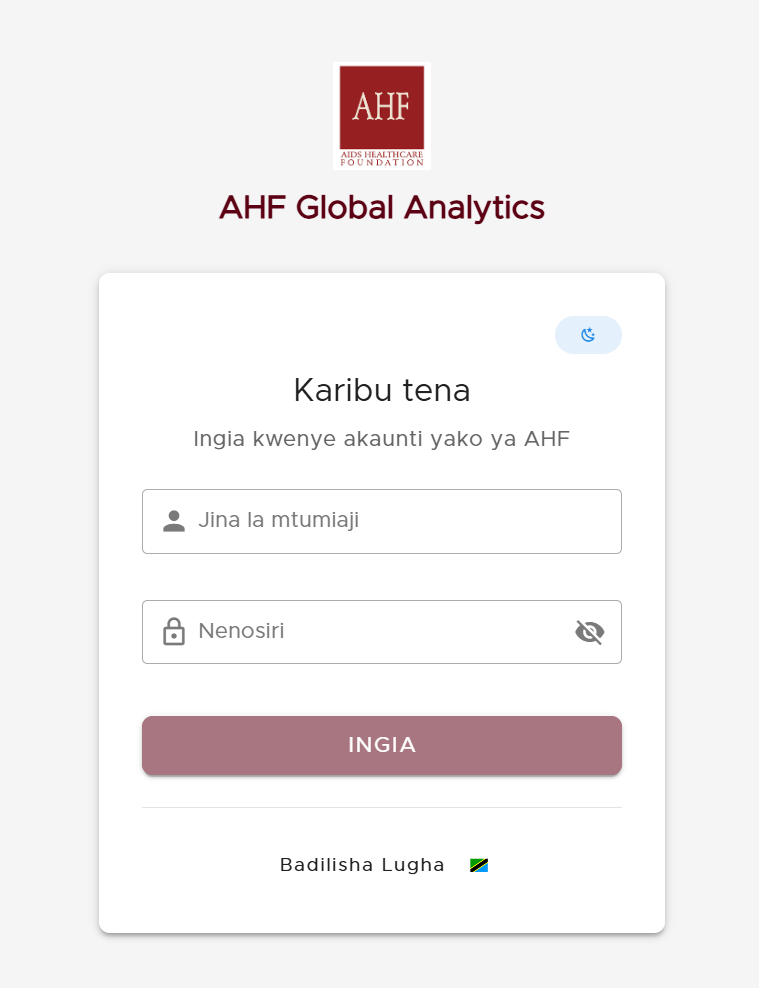
Swahili Language Activated Successfully
Language Selection via the Navigation Bar
This language selection option is available for a user who has logged in successfully (authenticated).
The current language in use is indicated by a flag and language abbreviation on the top right of the red Navigation bar.
To render the list of available languages, click the flag icon on the top right of the red Navigation bar.
From the rendered list of languages, find and click your preferred language to select it.

Language Selection Option on Navigation Bar
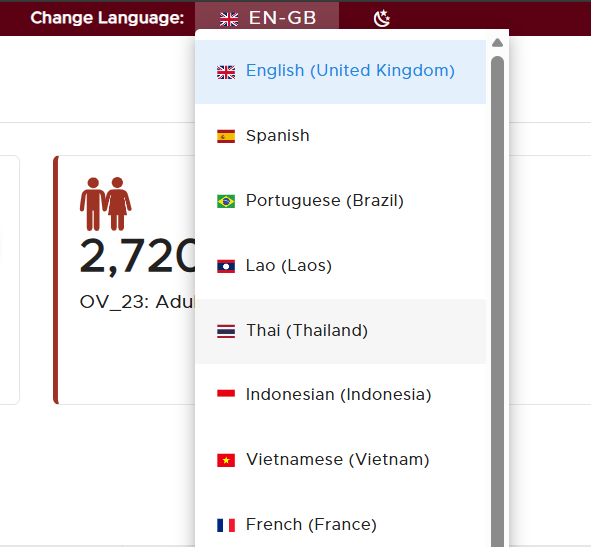
Selecting Thai Language