Customizing Dashboard Tabs
The Overview or Dashboard page bears 6 tabs just below the map for various Key performance Indicators (KPIs).
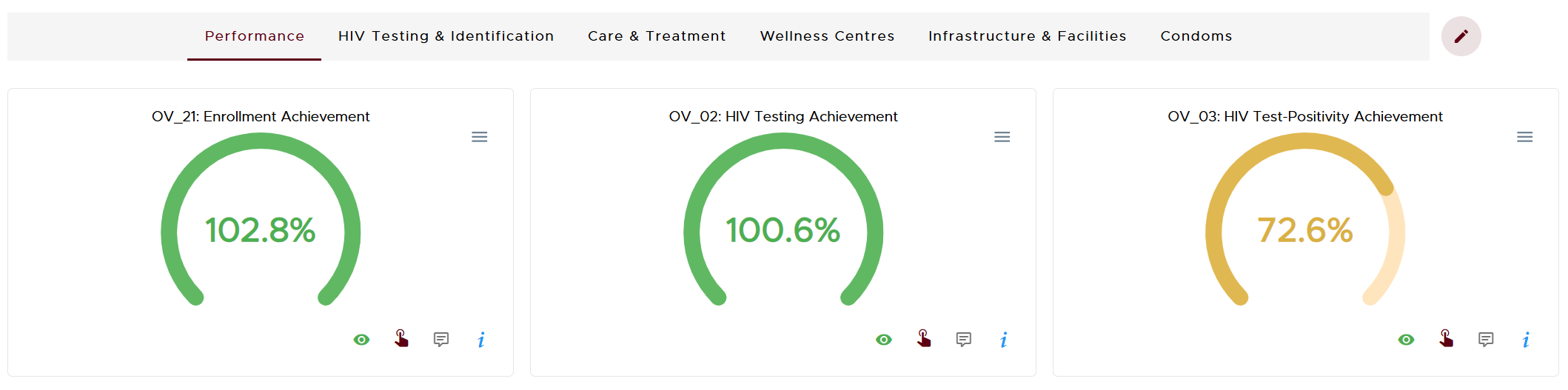
A snippet of the Dashboard tabs
These tabs can be customized by renaming, re-ordering or hiding them. To open the customization window, click the red pencil icon located on the rightmost end of the tabs (circled in red below).

Opening the tab customization window
Once the customization window appears, the red pencil icon changes to a green tick. Clicking the green tick would apply any modifications made on the tabs and close the customization window.
Below is a descriptive guide on how to achieve the customization highlighted above.
Renaming Tabs
To rename a tab, open the customization window as highlighted above and click the green pencil edit icon next to the tab name. This will provide an input field, allowing renaming of the tab of interest.
After typing into the input field, click the grey tick icon located on the right of the input field and finally click the green tick icon that is on the rightmost end of the original tabs.
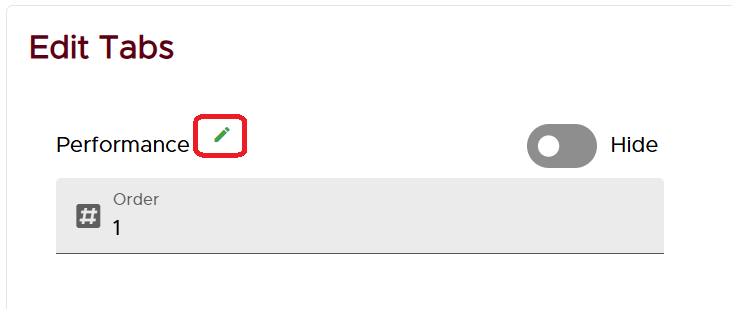
Click the edit icon to open the input field for Performance tab
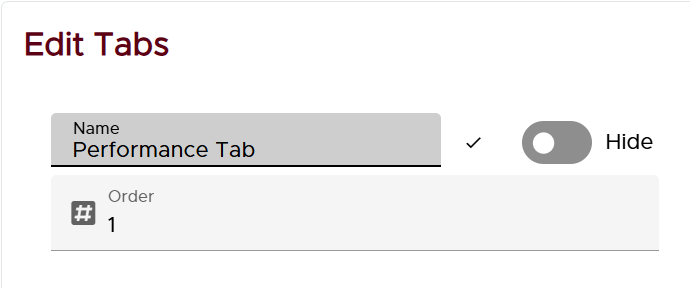
Providing a new name for the Performance tab in the input field
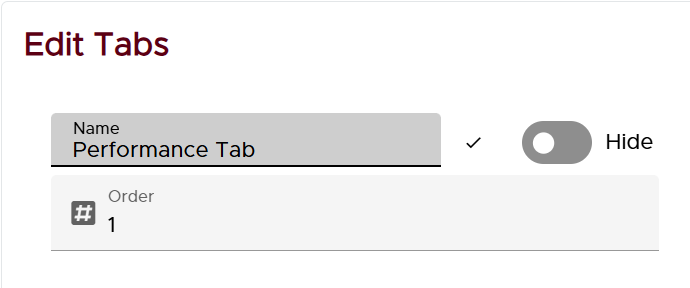
Click the grey edit icon to close the input field for the Performance tab

Save edit changes and close the tab customization window
Notice that Performance has successfully been updated to Performance Tab.
Re-ordering Tabs
The Overview tabs have a default ordering. To override the default order of tabs, open the customization window and identify the tabs whose positions you would like to re-order. You can then modify the Order input fields and close the customization window.
The illustrations below show re-ordering of the Performance and Wellness Centres tabs.
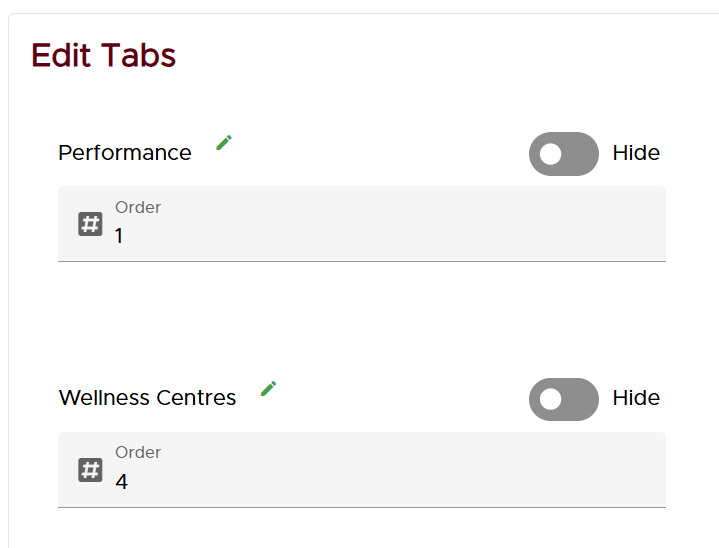
Default ordering of Performance & Wellness Centres tabs
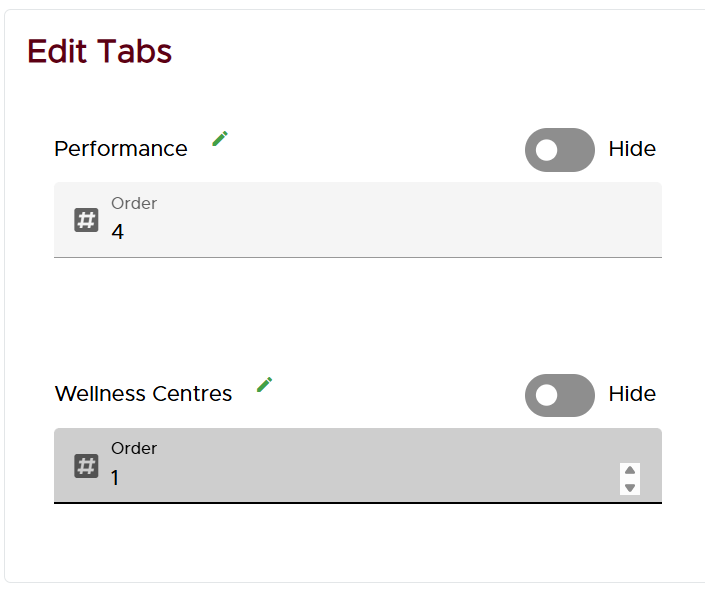
Swapping the order fields for Performance & Wellness Centres tabs

Updated Overview tab layout
Notice that the Wellness Centres tab is now 1 st whereas Performance is 4 th in the tab layout.
Hiding or Showing Tabs
The visibility of a tab can be customized by clicking the Hide toggle button associated with the respective tab within the customization window.
Restoring Tab Defaults
To revert any changes made during customization of the Overview tabs, open the customization window and click the red Reset button as indicated below with a green arrow pointer.
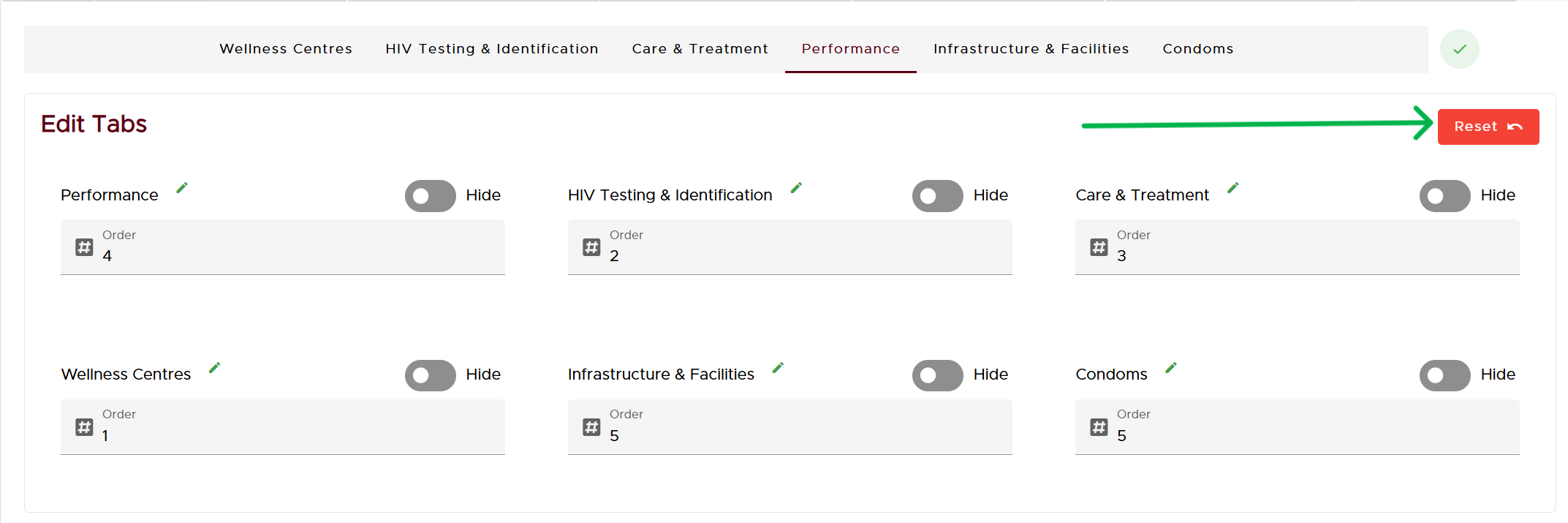
The Reset button